Quick Reply
Search this Thread
A world of indifference, Heads and hearts too full
retired moderator
#26 Old 28th Dec 2020 at 12:37 AM
@Jawusa No change, still the bright objects/ sim and no bumpmapping. I also rem'd out any line in the CAS graphics rules which was setting levels to low or forcing skipTangentsInVertexData in case the card was underpowered, so it should let bumpmaps work for any card regardless, but no luck... I'll take another look at it when I have time, perhaps I missed something!
Screenshots
Mad Poster
#27 Old 28th Dec 2020 at 12:49 AM Last edited by AndrewGloria : 28th Dec 2020 at 1:09 AM.
Quote: Originally posted by simmer22
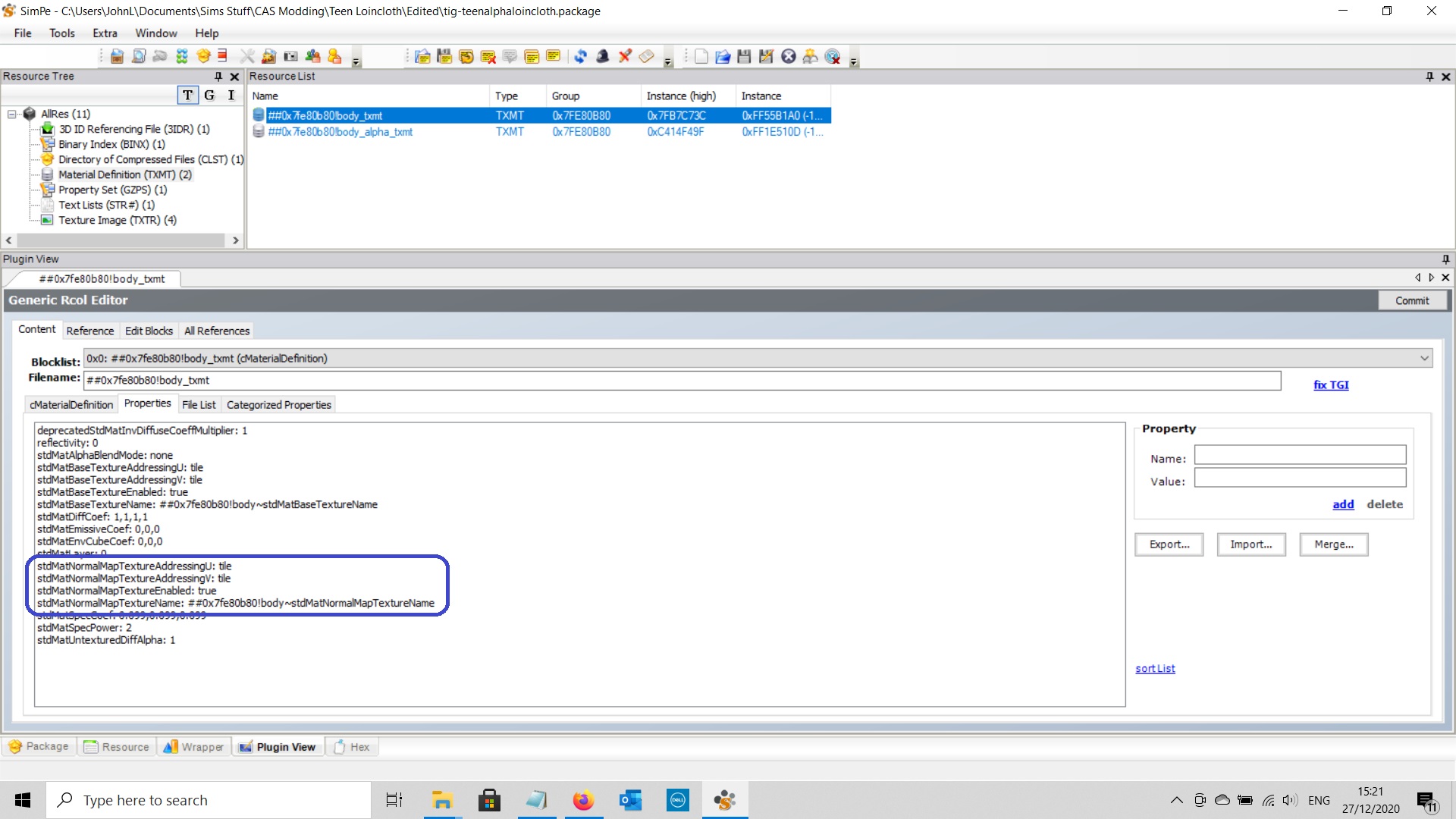
Have you tried removing the bump map and bump map references in the TXMT (the 4 lines in each TXMT)? They're not really doing anything as-is, and I suspect they're there just to be available for recoloring.
I tried removing them, but unfortunately it made no difference.

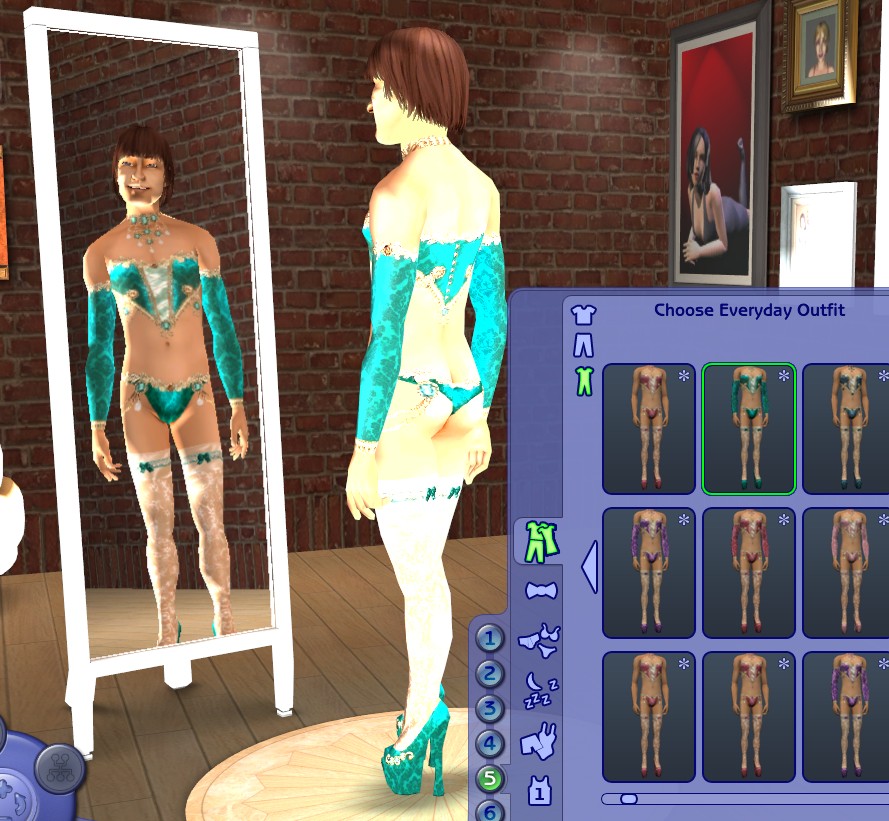
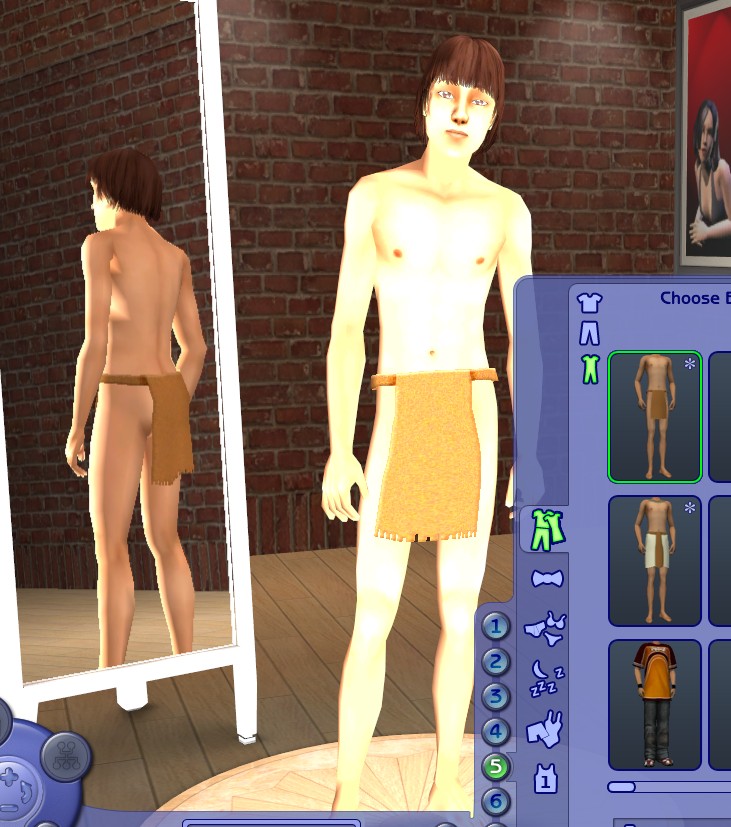
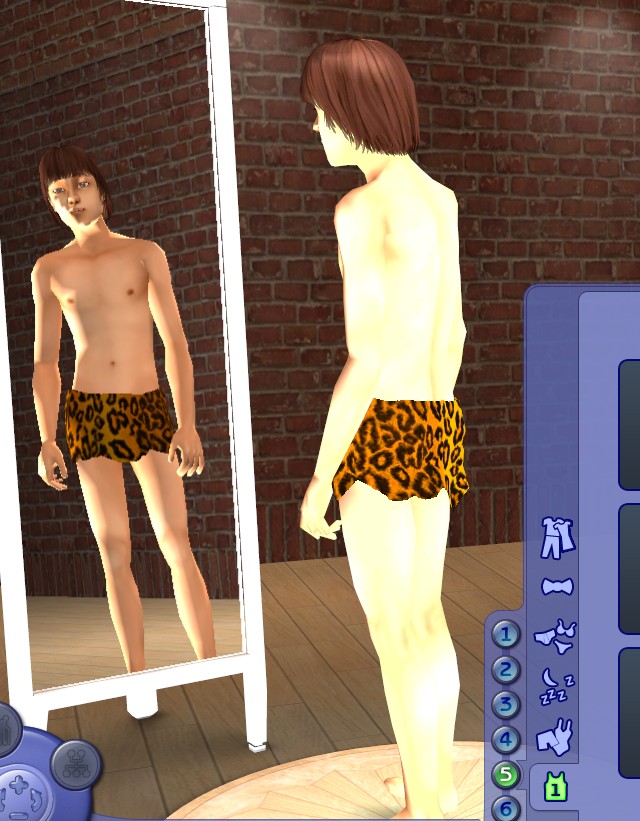
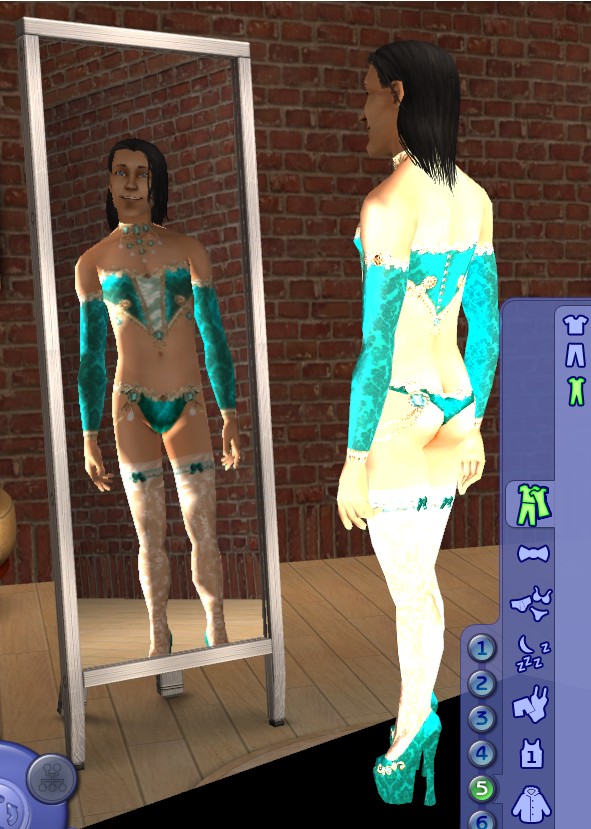
jawusa, simmer22 and simsample (and anyone else who wants to join in) if you haven't done so already, I wonder if you could download the three male clothing meshes that are causing me most bother, along with at least one recolour for each, and let me know how they show up in CAS -- normally or too bright.
mesh for Knightskykyte's Pretty Boy Outfit (Most recolours are here).
tiggerypum's Male Loincloth (alpha editable mesh) and its Teen version.
It would also be interesting (and probably relevant) to compare what graphics cards we're using. Mine is a NVIDIA GeForce GTX 1650 Ti on a Dell gaming laptop bought new in October.

Quote: Originally posted by simsample
The bumps show up fine in my regular game, it's just the basegame CAS. So it's possible this is the cause of the glitches for other people, especially those who don't have all EPs and SPs.
I only have the first three EPs (up to OFB) plus the Celebration! SP, but bump maps are showing up, both in game and in CAS on my new computer. I could never see bump maps on my old PC. So far I haven't tried putting AGS on my new computer. In any case I might just leave my AGS base game "permagame" on the old one as I only use it for making (and testing) things (like houses) that I want to share as base game compatible.

[EDIT]
Quote: Originally posted by Jawusa
As @simmer22 already mentioned, I suspect that it could also be Material Definition (TXTM) related. A way to test is to link a random recolor package to that mesh (even though it'd look completely off) and see whether the clothing shows up fine or not.
I think I'll try it both ways. Both linking a random recolour to the suspect mesh, and linking an overbright recolour to a mesh that is working for its own recolours. That should help to see whether the problem is in the mesh, as I suspect, or in the recolours. But I'll leave it till tomorrow as I'm sure I need some sleep before I try that! I have very little experience of linking
recolours to meshes, so I'll need all my wits about me to do it.
Screenshots

All Sims are beautiful -- even the ugly ones.
My Simblr ~~ My LJ
Sims' lives matter!
The Veronaville kids are alright.
Mad Poster
#28 Old 28th Dec 2020 at 1:48 AM
After removing the normal maps, make sure you delete the cache files so you get a proper test (changes done to package files might not show up properly otherwise).

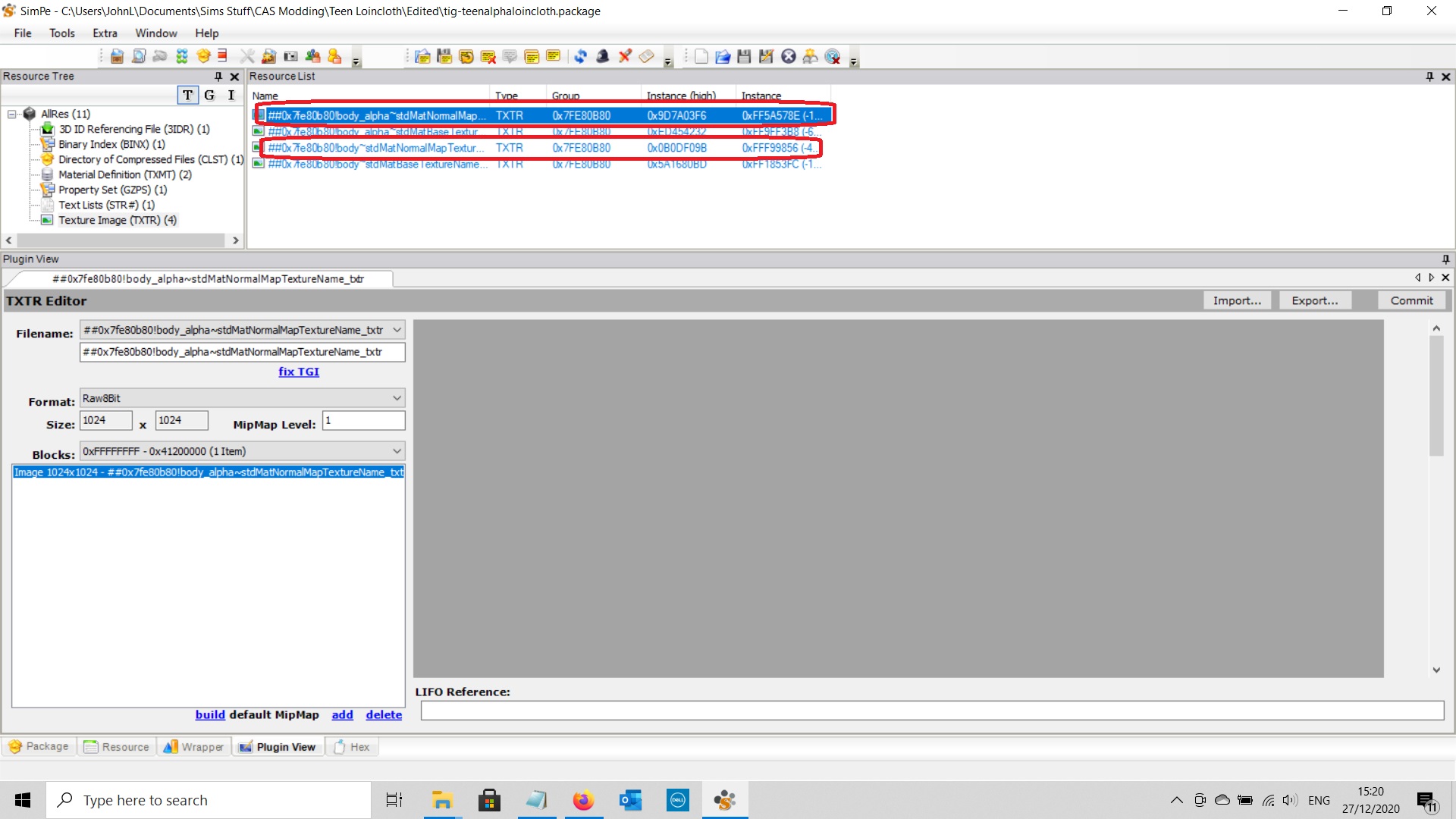
To link a recolor, find a mesh you want to link it to (make sure it's the same age/gender or you'll get some unintended results), open the 3DIR in the recolor file, wait for it to load, and link it to the mesh via the PJSE tool (the Unimesh tutorial part 1 has a full how-to with pictures).
https://modthesims.info/wiki.php?ti...to_the_Recolour
Mad Poster
#29 Old 28th Dec 2020 at 7:59 PM
Quote: Originally posted by simmer22
To link a recolor, find a mesh you want to link it to (make sure it's the same age/gender or you'll get some unintended results), open the 3DIR in the recolor file, wait for it to load, and link it to the mesh via the PJSE tool (the Unimesh tutorial part 1 has a full how-to with pictures).
https://modthesims.info/wiki.php?ti...to_the_Recolour
That's the tutorial I'm using. I know so little about meshing that I can't do anything in Milkshape without referring to it!

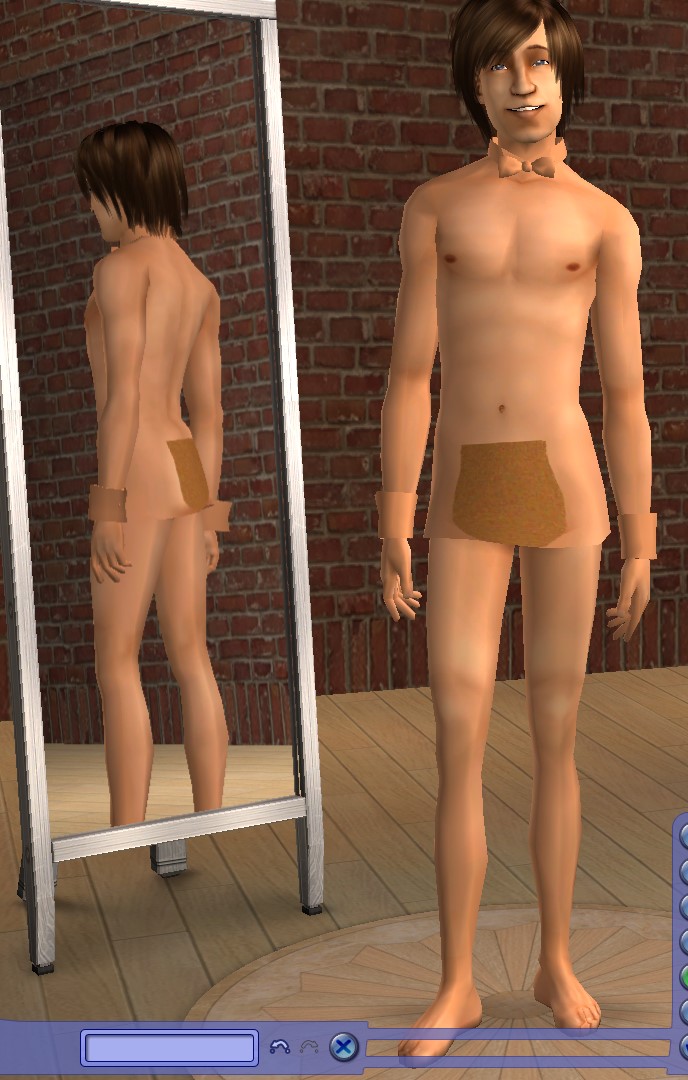
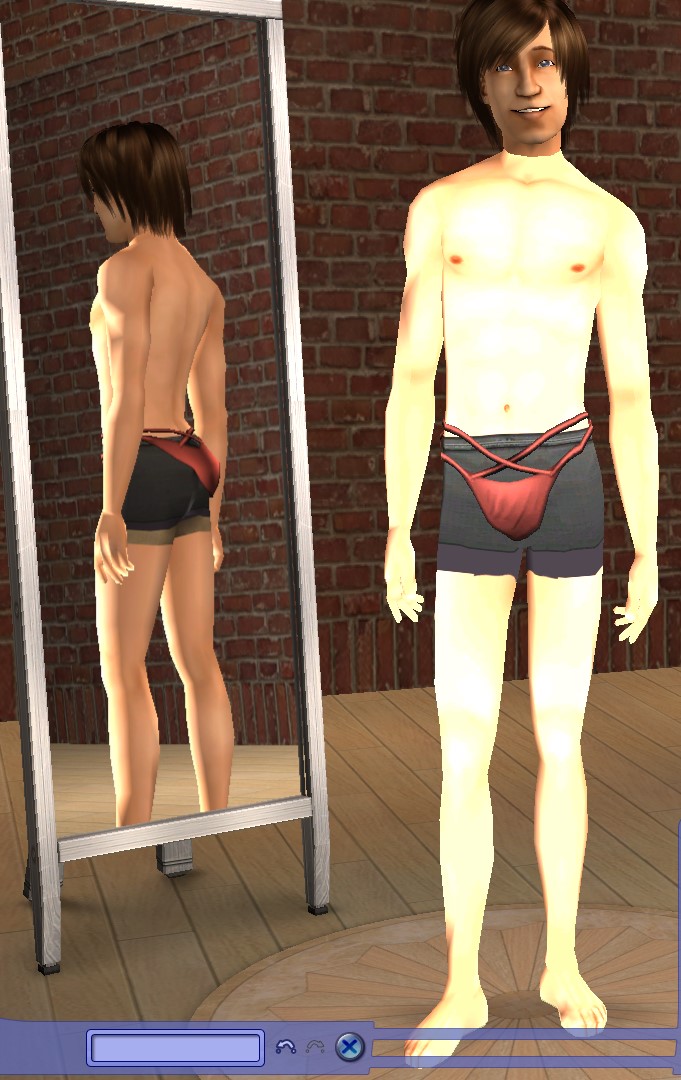
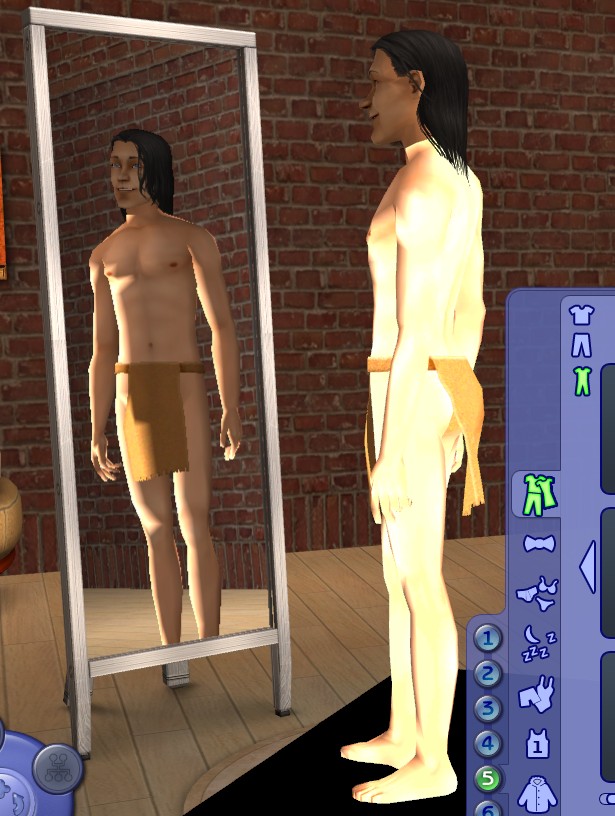
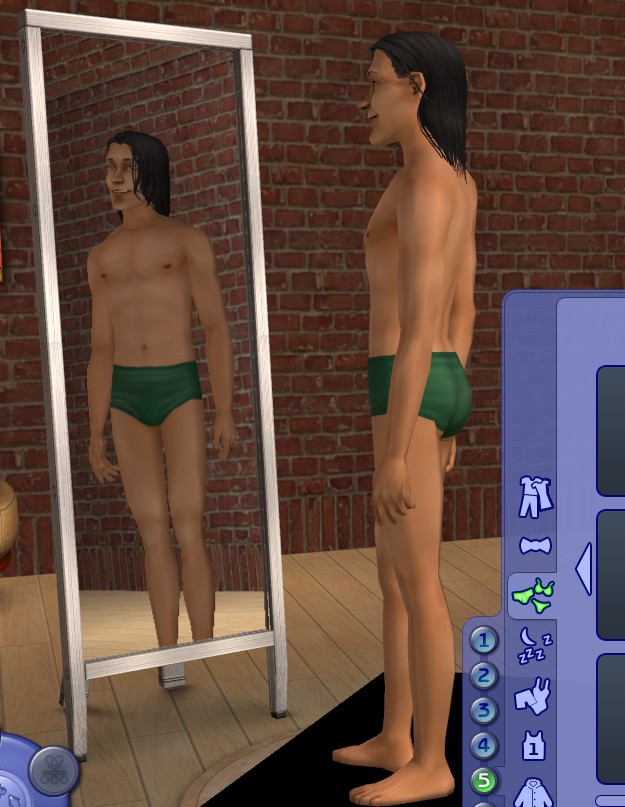
I tried out linking the recolours to the wrong meshes:

Of course both look horrible because they are linked to the wrong meshes, but I think these pictures do show what I suspected: that the too-brightness depends upon the mesh not on the recolour.

This is probably as far as I can go with my present knowledge of meshing. But I think I have demonstrated that, in my game at least, the problem must lie somewhere in the mesh, not in the recolour, since all recolours using that mesh are affected.

Can the rest of you confirm for me if the same meshes show up too bright in CAS in your game too, and say what graphics card/chip you're using. My hunch is that jawusa and simmer22 will be the same as me, but the clothes will show correctly for simsample, as in simsample's game only base game CAS is affected, but in base game everything shows up too bright. If this was just affecting me, I think I'd just put up with it, as everything else in my game seems to be working properly, but, if it's affecting a substantial number of players with modern graphics cards, it's worth trying to fix it.
Screenshots

All Sims are beautiful -- even the ugly ones.
My Simblr ~~ My LJ
Sims' lives matter!
The Veronaville kids are alright.
Mad Poster
#30 Old 28th Dec 2020 at 9:25 PM
I tried the loincloth adult mesh - bright in my game too.
My card is Nvidia GeForce 9500 GT, the computer dates from 2009.

I thought I'd have a go at the hairs I have which are bright, but I see the fix has to happen in Milkshape? I'm hopeless with meshing programs. I'll need a really clear tutorial and probably my hand held.

My new downloads are on my Pillowfort
Mad Poster
#31 Old 28th Dec 2020 at 9:32 PM
I can't find anything in the meshes.

One possibility is to remake them with another mesh base and see if that helps. Could be a problem with the base mesh used or some such. You would just have to remake the mesh file, replace the mesh, and then relink the recolors. You could try for one of them.
Staff - Moderator
staff: moderator
Original Poster
#32 Old 28th Dec 2020 at 9:37 PM
Maybe it's not the GMDC but the GMND file that needs an update?
I think there was a tutorial once on how to edit the file if the mesh includes transparent blend groups. I haven't had a look into the mesh file yet, but I suspect that there might be wrong references in the GMND file maybe?

http://stonegod.org/sims2/tutorial/...rial/index.html
Mad Poster
#33 Old 28th Dec 2020 at 10:04 PM
Milkshape won't import anything; probably crippled because the trial period is over? Might have another go later, other stuff to do now.

My new downloads are on my Pillowfort
Mad Poster
#34 Old 28th Dec 2020 at 10:44 PM Last edited by simmer22 : 28th Dec 2020 at 10:57 PM.
I've always wondered about the GMND and SHPE for body meshes - a lot of tutorials don't mention them, and meshes seem to work without having to change them - and then things like these happen, and you kind of start to wonder. They are important for objects, so I don't see why they shouldn't be as important for body meshes.

Lately when I've tried to remove the lens group from accessories (I'm trying to cut down on the items in the files) I get all sorts of issues (I've already tried editing the GMND and SHPE, it only half seemed to work). It's the first time in ages I've gotten blue-flashing accessories (for toddlers, which is understandable - but also for some adult meshes, and in Bodyshop thumbnails, of all places), and that shouldn't happen. But I don't doubt it could have something to do with the GMNDs and SHPEs.

Still figuring it out, but hoping it's an easily fixable mesh problem and not a recolor issue, because I already made some 60+ recolors of some of them before I noticed it...
A world of indifference, Heads and hearts too full
retired moderator
#35 Old 29th Dec 2020 at 1:59 PM
@AndrewGloria Wow, it looks like I do have the CAS problem- it's just that none of the CC I have in-game to date seems to show it. But the KSK CC you linked does, as does the Tig loincloth.

Screenshots
Mad Poster
#36 Old 29th Dec 2020 at 11:25 PM
It's strange that they affect the whole skin with the face and all, though. Almost looks more like a bad TXMT setting, but that's a bit strange if the items work fine on different meshes.
A world of indifference, Heads and hearts too full
retired moderator
#37 Old 30th Dec 2020 at 12:16 AM
Only in the basegame only does it affect the whole sim; for the SP9 game it's just the body. For the basegame I cannot have Bumpmaps working at all in CAS, although they work in other configurations, I even made a custom graphicsrules to force shaders, bumpmaps, skipTangentsInVertexData false and all high settings on all hardware, but to no avail. I had bumpmapping working on this particular computer on basegame only last year, so something's changed, and it isn't my card, drivers or game. I'm looking at you, Windows 10!
Screenshots
Lab Assistant
#38 Old 22nd Jan 2026 at 5:05 AM
Does anyone know a quick fix to certain content showing up like this in game? I have a handful of custom content that is showing up like this (super bright) in CAS only. For example, just certain hairstyles, the rest of the Sim looks fine. It's working normally in the regular game, but it does make creating Sims much more difficult.

Update: I fixed it! I downloaded the Overly Bright CAS Fix by LazyDuchess and it fixed the problem for me. It wasn't affecting entire Sim's bodies, just certain CC, but this still did the trick. I highly recommend it for anyone having this issue.
Mad Poster
#39 Old 22nd Jan 2026 at 6:01 AM
It happens because of a missing line in the mesh file (in the Milkshape "Comments" - no idea if Blender can cause the same issue).
Unless you want to fix and replace all offending meshes, using LD's CAS fix is the best option.

Just make sure to temporarily remove LD's file if you want to make stuff with Homecrafter - otherwise it makes the crafting preview window pink.
Page 2 of 2
Back to top