
 Sign in to Mod The Sims
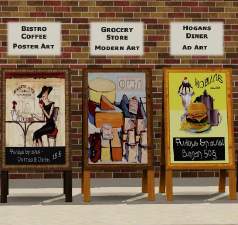
 Simlish Store Sign Paintings
 Simlish Store Sign Paintings


Simlish Store Sign Paintings.jpg - width=1920 height=1200
Screenshot-5-Photoroom.png - width=1920 height=1200
Screenshot-2-Photoroom.png - width=1920 height=1200
Screenshot-3-Photoroom.png - width=1920 height=1200
Screenshot-4-Photoroom.png - width=1920 height=1200
What's included:
This upload contains only the edited .package file for the painting. The easel and the rest of the original Artistic Display Set are not included here, so you'll need to download those separately from the original creator.
Credits:
Original mesh and set by Pi the Infinite. All credit for the base set goes to them. I only edited the painting textures to replace the text with Simlish.
Original set: https://pitheinfinite.blogspot.com/...isplay-set.html
| Filename | Type | Size |
|---|---|---|
| Simlish Store Sign Paintings.zip | zip | |
| Simlish Store Sign Paintings.package | package | 928042 |
|
Simlish Store Sign Paintings.zip
Download
Uploaded: 20th Jun 2026, 826.5 KB.
32 downloads.
|
||||||||
| For a detailed look at individual files, see the Information tab. | ||||||||
Install Instructions
1. Click the download button, or the filename, to download the file to your computer.
2. Extract the zip, rar, or 7z file. Now you will have either a .package or a .sims3pack file.
For Package files:
1. Cut and paste the file into your Documents\Electronic Arts\The Sims 3\Mods\Packages folder. If you do not already have this folder, you should read the full guide to Package files first: Sims 3:Installing Package Fileswiki, so you can make sure your game is fully patched and you have the correct Resource.cfg file.
2. Run the game, and find your content where the creator said it would be (build mode, buy mode, Create-a-Sim, etc.).
For Sims3Pack files:
1. Cut and paste it into your Documents\Electronic Arts\The Sims 3\Downloads folder. If you do not have this folder yet, it is recommended that you open the game and then close it again so that this folder will be automatically created. Then you can place the .sims3pack into your Downloads folder.
2. Load the game's Launcher, and click on the Downloads tab. Find the item in the list and tick the box beside it. Then press the Install button below the list.
3. Wait for the installer to load, and it will install the content to the game. You will get a message letting you know when it's done.
4. Run the game, and find your content where the creator said it would be (build mode, buy mode, Create-a-Sim, etc.).
Extracting from RAR, ZIP, or 7z: You will need a special program for this. For Windows, we recommend 7-Zip and for Mac OSX, we recommend Keka. Both are free and safe to use.
Need more help?
If you need more info, see:
- For package files: Sims 3:Installing Package Fileswiki
- For Sims3pack files: Game Help:Installing TS3 Packswiki
Loading comments, please wait...
Uploaded: 20th Jun 2026 at 5:10 AM
-
by leefish 8th Aug 2009 at 7:11am
 47
45.4k
68
47
45.4k
68
-
by Ewelina20 2nd Dec 2009 at 1:28pm
21
40.6k
70
-
by Ewelina20 12th Dec 2009 at 6:06am
18
46.1k
79
-
by Ewelina20 15th Dec 2009 at 1:48pm
25
37.5k
91
-
TS2>TS3 Rackmaster 850 Bowling Ball Rack Conversion
by Menaceman44 22nd May 2013 at 10:14am
13
25.4k
88
-
by TheJim07 10th Nov 2016 at 12:20pm
5
10.8k
36
-
-
-
-



-


by ctrlshiftc-simberly 14th Feb 2026 at 4:55pm
ctrlshiftclean is a cleanup tool for The Sims 3 that removes cache files, folders, and log files the game creates more...
7
8.9k
28
