
 Sign in to Mod The Sims
 Automatically Closing Shutters (Shy & Shout Out Shutters)
 Automatically Closing Shutters (Shy & Shout Out Shutters)


Cover.png - width=1596 height=486
view_inside_night.PNG - width=1572 height=748
view_inside_night_2.PNG - width=1042 height=668
variants.PNG - width=1273 height=492
variants_2.PNG - width=1044 height=574
Customization.PNG - width=1069 height=494
Another one for the automatically closing curtains/blinds series! This time it's the EA Shout Out and Shy Shutters.
About This Content
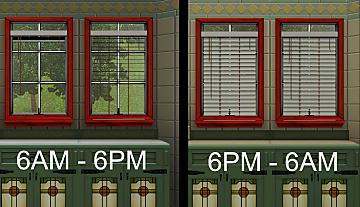
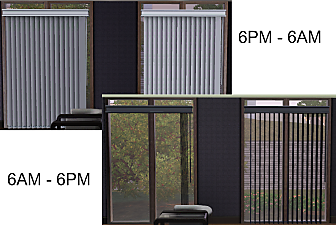
These shutters are the same as the Shout Out Shutters/Shy Shutters from the base game. During the day (6AM - 6PM), the shutters are open. During the night (6PM - 6AM), they are closed.
There are two objects contained in the .zip-file, each containing one of the shutters.
Facts
- Found under "Decor" > "Curtains & Blinds" or "Bathroom"/"Dining Room" > "Curtains & Blinds"
- Price: 200 (Shy Shutters)/175 (Shout out Shutters)
- Needs the Supernatural EP
How does this work
The shutters use the "Commonwealth Court" painting, which was added with the Supernatural EP, as a base. If you're not familiar with it, the image in the painting changes based on the time of day. These different images are represented by geostates. For example, bookshelves also use different geostates - based on how many books have been added to the shelf, the shelf is displayed slightly different in-game.
This content uses geostates to decide what parts or faces of the object are displayed, making the shutters appear closed or opened. As with the painting, the game then automatically selects a geostate depending on the time of day.
Polycount
Shy Shutters
| Variation | High | Low |
|---|---|---|
| Closed State | 450 | 98 |
| Open State | 450 | 98 |
Shout out Shutters
| Variation | High | Low |
|---|---|---|
| Closed State | 400 | 136 |
| Open State | 400 | 136 |
Credits
- Automatically closing curtains by martoele (inspired the idea to create the automatically changing blinds)
- Reddit comment (provided the nudge in the right direction regarding the functionality)
- s3oc (used for cloning the supernatural painting)
- s3pe (used for fine tuning of the created object)
- TSR Workshop (used to create the different geo states for day/night)
| Filename | Type | Size |
|---|---|---|
| Shadowsun252_automatic_shutters.zip | zip | |
| Shadowsun252_automatic_shout_out_shutters.package | package | 350808 |
| Shadowsun252_automatic_shy_shutters.package | package | 831845 |
This is a new mesh, and means that it's a brand new self contained object that usually does not require a specific Pack (although this is possible depending on the type). It may have Recolours hosted on MTS - check below for more information.
|
Shadowsun252_automatic_shutters.zip
Download
Uploaded: 27th Dec 2025, 295.1 KB.
970 downloads.
|
||||||||
| For a detailed look at individual files, see the Information tab. | ||||||||
Install Instructions
1. Click the download button, or the filename, to download the file to your computer.
2. Extract the zip, rar, or 7z file. Now you will have either a .package or a .sims3pack file.
For Package files:
1. Cut and paste the file into your Documents\Electronic Arts\The Sims 3\Mods\Packages folder. If you do not already have this folder, you should read the full guide to Package files first: Sims 3:Installing Package Fileswiki, so you can make sure your game is fully patched and you have the correct Resource.cfg file.
2. Run the game, and find your content where the creator said it would be (build mode, buy mode, Create-a-Sim, etc.).
For Sims3Pack files:
1. Cut and paste it into your Documents\Electronic Arts\The Sims 3\Downloads folder. If you do not have this folder yet, it is recommended that you open the game and then close it again so that this folder will be automatically created. Then you can place the .sims3pack into your Downloads folder.
2. Load the game's Launcher, and click on the Downloads tab. Find the item in the list and tick the box beside it. Then press the Install button below the list.
3. Wait for the installer to load, and it will install the content to the game. You will get a message letting you know when it's done.
4. Run the game, and find your content where the creator said it would be (build mode, buy mode, Create-a-Sim, etc.).
Extracting from RAR, ZIP, or 7z: You will need a special program for this. For Windows, we recommend 7-Zip and for Mac OSX, we recommend Keka. Both are free and safe to use.
Need more help?
If you need more info, see:
- For package files: Sims 3:Installing Package Fileswiki
- For Sims3pack files: Game Help:Installing TS3 Packswiki
Loading comments, please wait...

 View with Names
Uploaded: 27th Dec 2025 at 2:33 PM
-
PLAIN 'Cortinas Festivas!' and 'Traditional Curtains' blinds *Updated 21-Oct-11*
by Menaceman44 updated 21st Oct 2011 at 4:41pm
 15
27.2k
48
15
27.2k
48
-
by Odysseus1960 updated 7th Apr 2011 at 6:10pm
73
114.5k
170
-
by granthes 2nd Dec 2010 at 5:39pm
58
127.5k
390
-
Curtain height adjustment for Generations
by armiel 24th Jun 2011 at 5:52am
+1 packs
12 30.1k 87 Generations
-
-
-
by TheJim07 2nd May 2016 at 7:27pm
12
26.3k
101
-
Automatically Closing Blinds (Eyes Aside Curtains)
by Shadowsun252 28th Apr 2025 at 1:36pm
+1 packs
15 7.5k 36 Supernatural
-
Automatically Closing Blinds (Static Blinds)
by Shadowsun252 12th Nov 2025 at 1:31pm
+1 packs
9 4.5k 20 Supernatural
-

Automatically Closing Curtains (Custom "Easy Breezy" Curtains)
by Shadowsun252 6th Apr 2026 at 2:49pm
+1 packs
1 5.4k 19 Supernatural


-

Automatically Closing Curtains (Custom "Easy Breezy" Curtains)
by Shadowsun252 6th Apr 2026 at 2:49pm
+1 packs
1 5.8k 19 Supernatural
-
Automatically Closing Blinds (Static Blinds)
by Shadowsun252 12th Nov 2025 at 1:31pm
+1 packs
9 4.7k 20 Supernatural
-
Automatically Closing Blinds (Eyes Aside Curtains)
by Shadowsun252 28th Apr 2025 at 1:36pm
+1 packs
15 7.6k 36 Supernatural
Packs Needed
| Expansion Pack | |
|---|---|
| Supernatural |